How SysMail OLM to O365 Migration Works
A step-by-step guide to using SysMail OLM to O365 Migration to easily importing Outlook OLM email Message to Online Office 365 Mailbox Account (Microsoft 365, Office 365, Live Exchange Server)
STEP 1 : Open SysMail OLM to O365 Migration
NEXT STEP
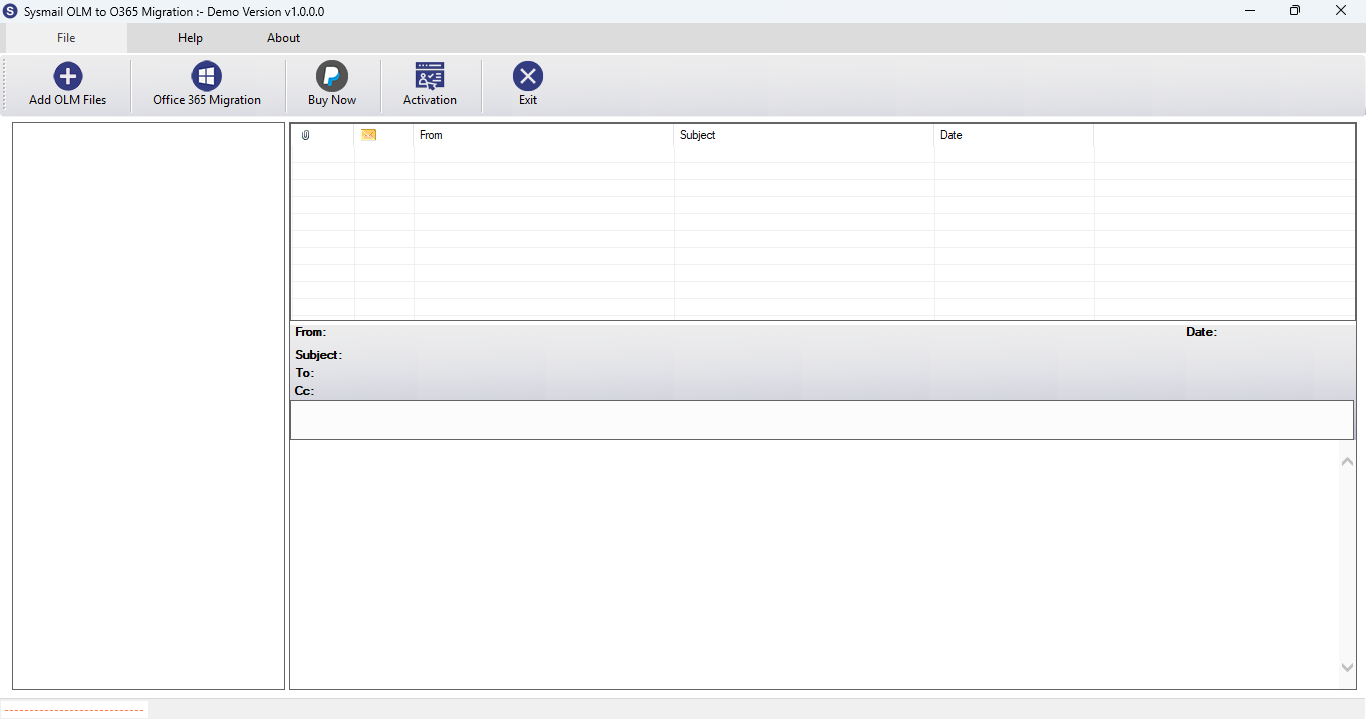
Download and Install SysMail OLM to O365 Migration Tool. Run the software, click on Next Button Start Software Installing and Open SysMail OLM to O365 Migration Tool If you want to buy software click on "Buy Now" Then Open directly Software Purchase Page.
Overview
STEP 2 : Select Mac Outlook OLM Files
PREVIOUS STEP NEXT STEP
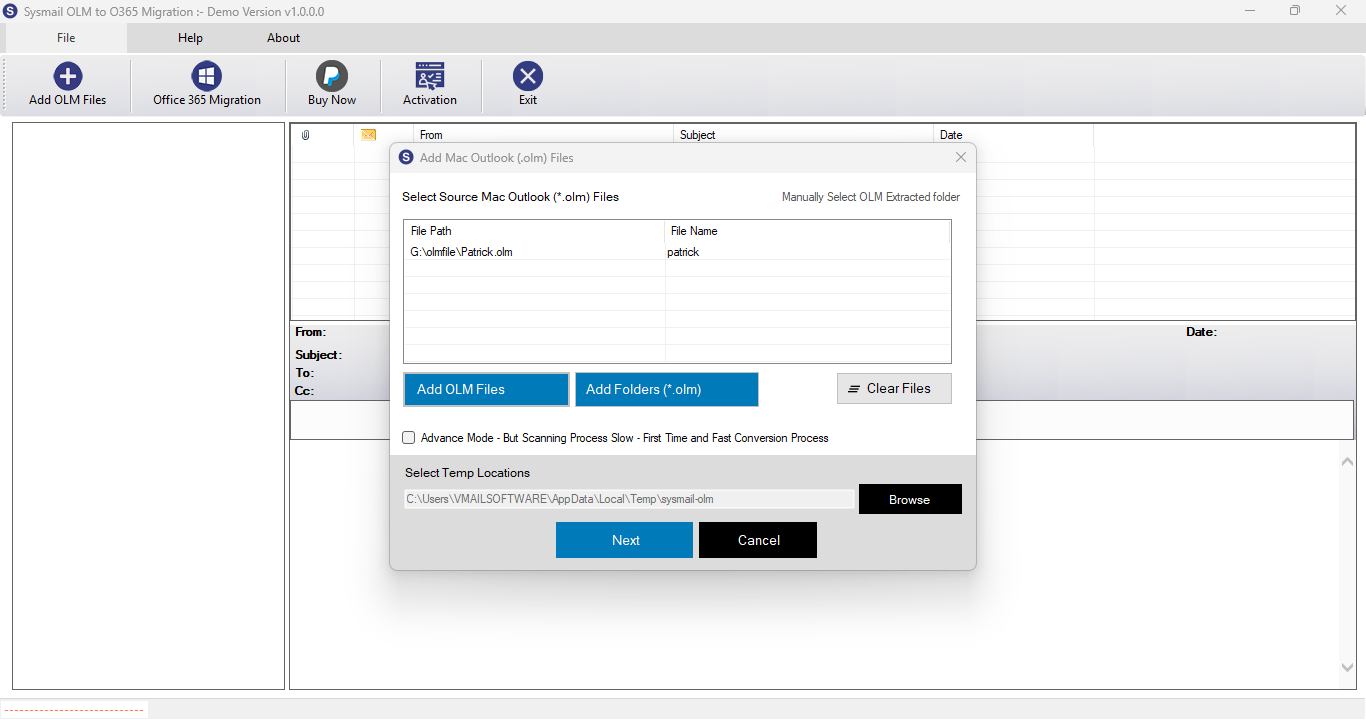
After Opening SysMail OLM to O365 Migration Tool Then Click on Browse Button then Open Dialog for Select Mac Outlook OLM File and Click on Next Button
Overview
STEP 3 : Searching Email Addresses from each folders
PREVIOUS STEP NEXT STEP
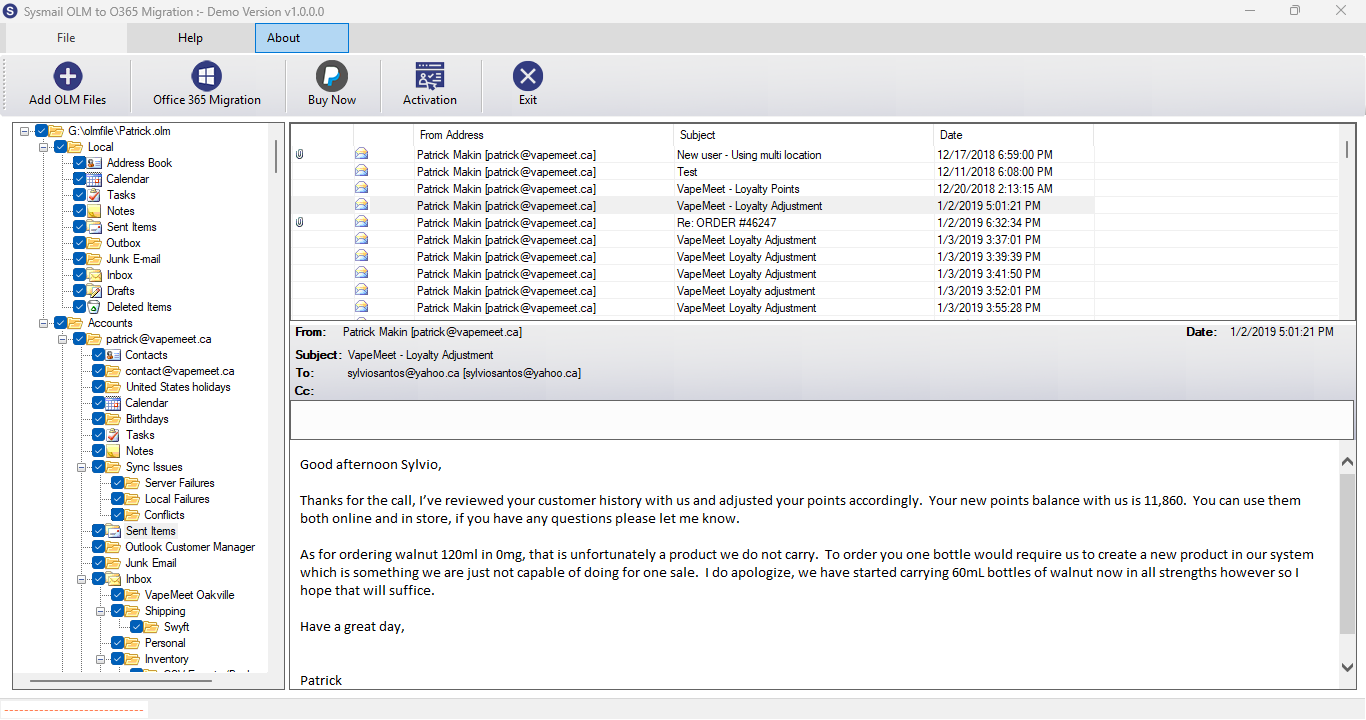
After Scanning and Loading OLM File folder - When click on any folder then software show message preview from olm file folder and show into List View
Overview
STEP 4 : Login to Office 365 or Microsoft 365 Mailbox Account
PREVIOUS STEP NEXT STEP
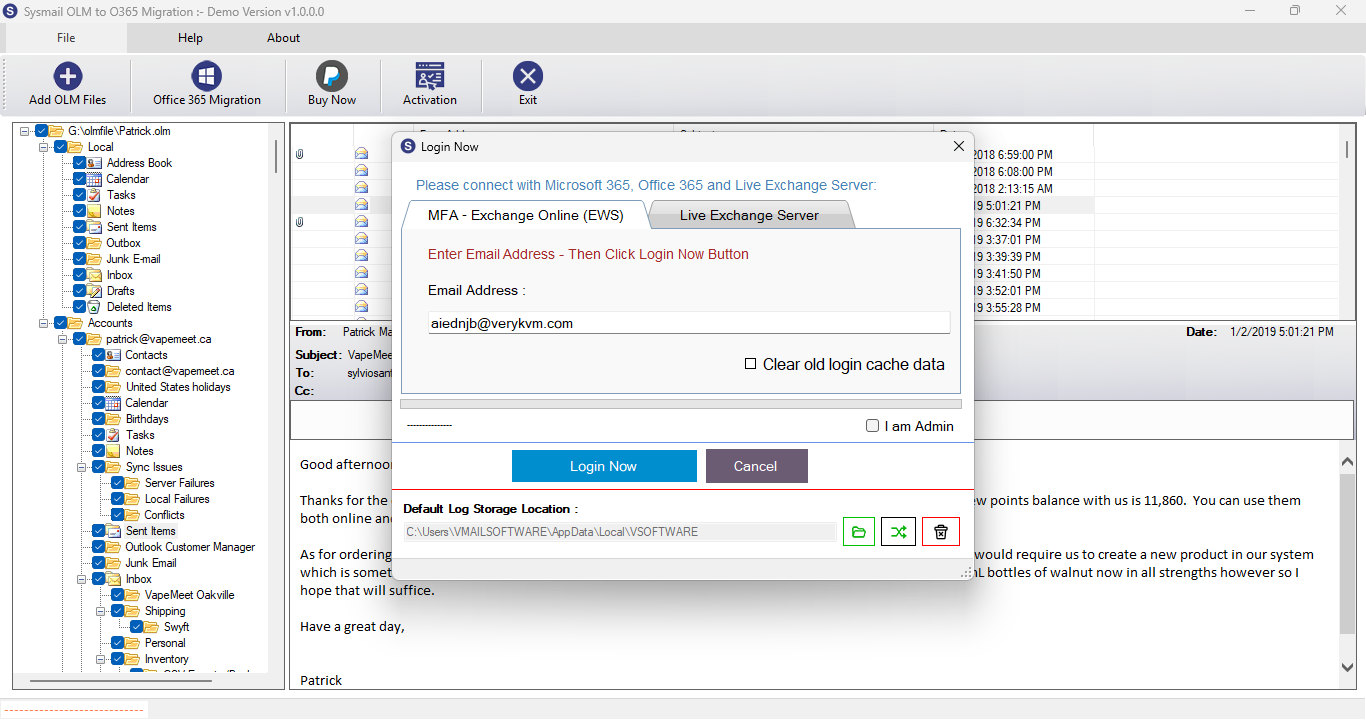
When Click on Office 365 Migration Button to Open Dialog for login into Office 365 or Microsoft 365 Mailbox Account
Overview
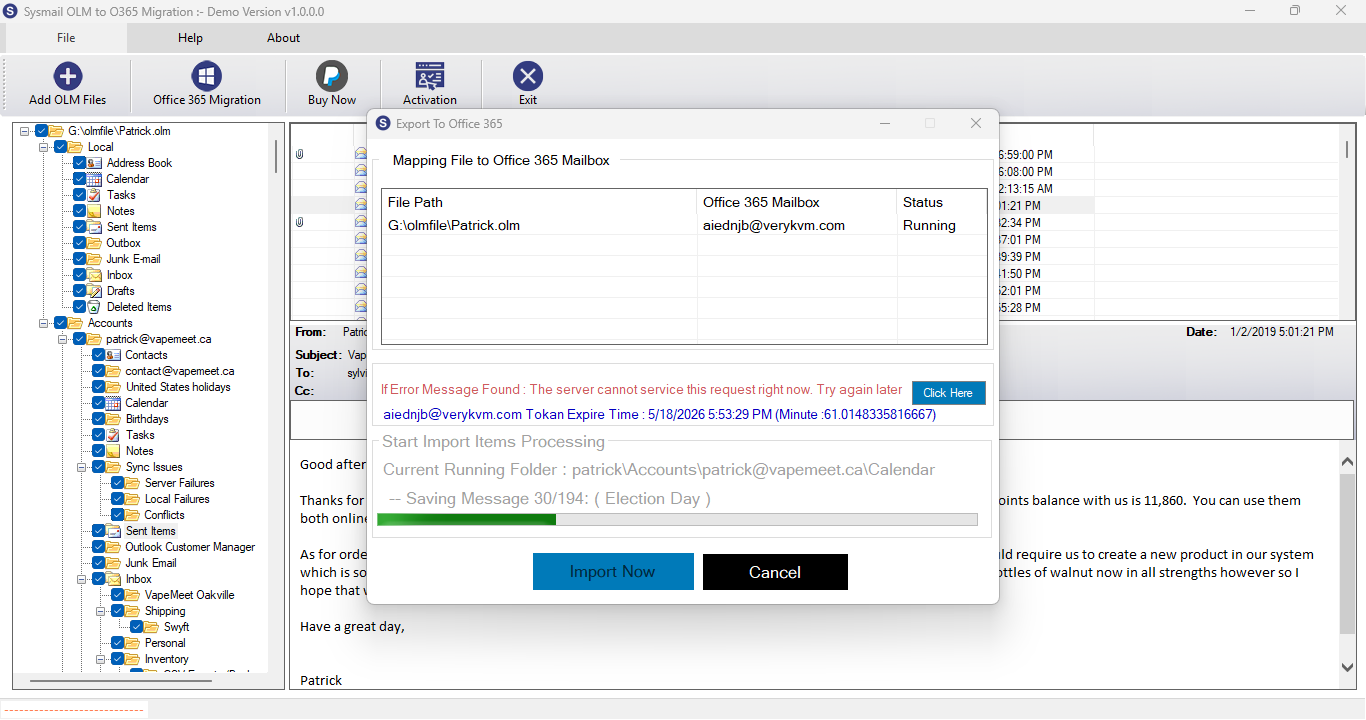
STEP 5 : Start Migration Process
PREVIOUS STEP NEXT STEP
You can click on Login Open Dialog for Migration to Office 365 or Microsoft 365 Email Account
Overview
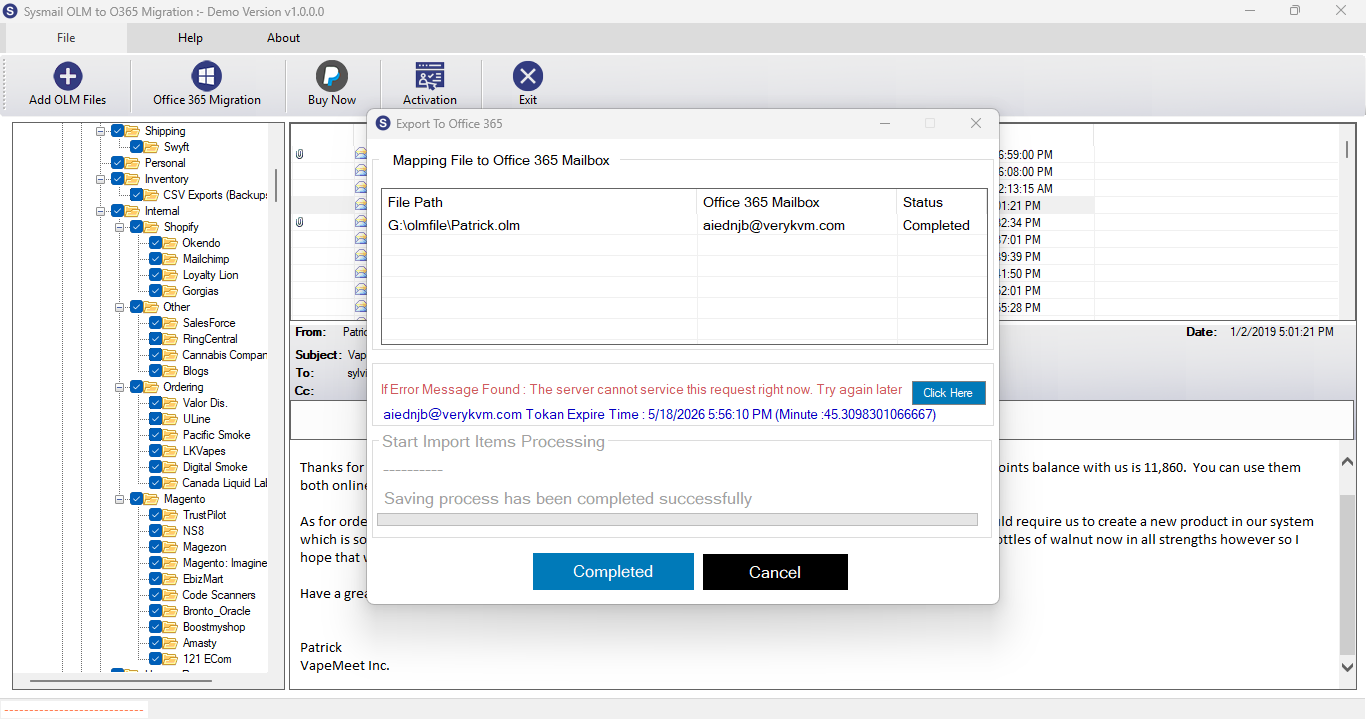
STEP 6 : Complete Migration
PREVIOUS STEP
OLM File Migration Process will be complete.